
If your calls are showing up as “Private Number” or “Unknown Caller,” it usually means your caller ID is hidden. While this can be useful for privacy, it may cause confusion or make people hesitant to answer your calls.
Fortunately, removing your number from appearing as private is simple and can be easily done through your phone settings.
In this blog, we will explore how to remove private numbers on both iPhones and Android devices, including Samsung, Infinix, Techno, and Itel, and help you manage your caller ID.
Highlights
- Displaying your number improves the likelihood of your call being answered, builds trust with recipients, and helps avoid spam flags.
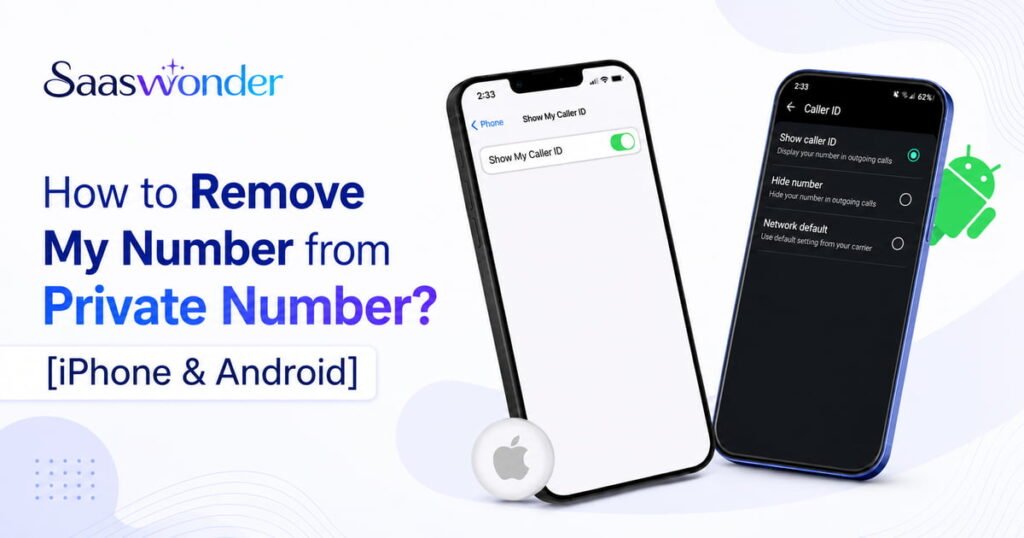
- To unprivate your number on iPhone, go to Settings > Apps > Phone and toggle the “Show My Caller ID” switch on.
- If you are an Android user and want to unhide your caller ID, open the Phone app and tap the three-dot menu. Then, select Settings > Supplementary services or Calls > Show your caller ID and select Always.
- Dialing codes like *31 or *82 before the phone number you want to call temporarily or permanently unblocks your caller ID.
Why Should I Stop My Number from Showing as Private Caller ID?
Displaying your caller ID increases the chances of your calls being answered, allows recipients to call you back, and prevents your number from being flagged as spam. It also builds trust, enhances professionalism, and improves transparency in both personal and business communication.
- Increases Call Answer Rate: Many ignore calls from private numbers, thinking they are spam or from scammers. Therefore, displaying your number increases the likelihood that your call will be received.
- Enhances Professionalism and Credibility: Showing a caller ID makes your business number appear professional and helps customers feel more comfortable receiving calls.
- Builds Trust: Unhiding your caller ID helps the person you’re calling feel more at ease by confirming that you’re a genuine individual.
- Avoid Being Blocked or Ignored: When you make an anonymous call, it is often flagged as spam by recipients’ call screening apps. Thus, stopping your number from showing as a private number helps prevent such inconveniences.
- Improve Transparency: Displaying your actual number allows recipients to immediately identify you, which reduces uncertainty and potential confusion.
- Better Call-Back Opportunities: If you leave a missed call while your number is hidden, the recipient has no way to call you back. Showing your number ensures the other party can reach you if needed.
How to Remove My Number from Private Number on iPhone?
To prevent your number from displaying as “Unknown Caller” when making calls from an iPhone, enable “Show My Caller ID” or reset your mobile network settings.
1. Turn on “Show My Caller ID”
- Open your iPhone’s Settings > Apps > Phone.
- Tap “Show My Caller ID,” then turn it on.
2. Reset Network Settings
Resetting your iPhone’s network settings can restore default configurations, including carrier settings, and prevent your number from appearing as a private number. This process resets Wi-Fi networks, VPNs, and cellular settings, which may fix issues related to caller ID restrictions.
Follow the steps below to reset network settings on iPhone:
- Go to the Settings.
- Scroll down and tap on General.
- Tap on Transfer or Reset iPhone.
- Tap on Reset and then select Reset Network Settings.
- Enter your passcode and confirm.
How to Stop My Number from Showing Private Number on Android?
To stop your number from appearing as a private number when calling from an Android phone, turn on the caller ID setting or reset your network settings.
1. Change Caller ID Setting
- Open your Phone app.
- Tap the three-dot menu icon located in the top-right corner of the screen.
- From the drop-down menu, select Settings.
- Go to Supplementary Services or Calls.
- Look for the Show your caller ID or Caller ID options.
- Select Always to display your caller ID.
2. Reset Network Settings
- Open the Settings app on your Android device.
- Scroll down and tap System or General management.
- Select Reset options.
- Tap Reset network settings.
- Confirm by selecting Reset settings again.
How to Remove My Number from Showing as Private on Samsung?
If your call is showing as a private number when you call from a Samsung phone, you can fix it by enabling caller ID. Here’s how:
- Open the Phone app.
- Tap the More (three-dot) icon in the top-right corner.
- Select Settings.
- Tap Supplementary services.
- Choose Show your Caller ID.
- Select Always.
How to Remove My Number from Private Number on Infinix?
If your call is showing as a private number when you dial out from an Infinix phone, you need to enable the caller ID setting. Here’s how:
- Open the Phone app.
- Tap the three-dot menu in the top-right corner.
- Go to Settings.
- Select Call settings or Additional settings.
- Tap Caller ID or Show my caller ID.
- Choose the Show number.
How to Remove My Number from Private Number on Itel?
To remove the “Private Number” status on your Itel phone and display your caller ID, follow these steps:
- Open the Phone app.
- Tap the three dots icon in the top-right corner and tap on Settings.
- Go to Additional Settings.
- Click on Caller ID.
- Choose the option to Show Number.
How to Remove My Number from Private Number on Tecno?
If your outgoing call from a Tecno phone appears as a private number, you can fix this by turning on caller ID. Here’s how:
- Open the Phone app.
- Tap the three-dots menu in the top-right corner and choose Settings.
- Go to Additional settings.
- Select Caller ID.
- Choose the Show number.
Additional Methods to Remove Your Number from Private Number
If you’ve tried the above steps and your number is still showing as private, consider using a dial code or contacting your carrier.
1. Use Network Codes
If you have previously set your caller ID to private, there are codes you can use to manage how your number appears when making calls. On most GSM networks, you can temporarily show your caller ID for a single call by dialing *31# followed by the phone number you want to reach. In North America, including the United States and Canada, the equivalent code is *82 followed by the phone number.
2. Contact your Mobile Carrier
Some carriers can block caller ID by default or due to technical issues, causing your number to appear as a private number when making a call. In such a case, contact your telecommunications provider and request that they modify your caller ID settings. After they make the necessary changes, restart your phone to complete the updates.
Additionally, this method is also applicable when you cannot find the “Show My Caller ID” option or if it is grayed out.
Top Third-Party Apps to Unmask Private Numbers
TrapCall and MaskOff are the top third-party apps that help you remove your number from private numbers and enable you to manage your caller ID.
1. TrapCall
TrapCall is a specialized app designed to unmask private numbers and reveal the identity behind blocked or unknown calls. When you receive a call from a private or restricted number, Trapcall will unmask it and show you the caller’s phone number.
Features:
- Reveals the true identity of callers.
- Provides security against unwanted and spam calls.
- Record incoming phone calls for documentation and evidence.ProsCons
- Provides detailed call logs with full names and numbers, which can be used as evidence in legal matters.
- Simple to set up and provides quick results when testing or unmasking blocked calls.
- Not all carriers support the app.
- There is no direct phone support available.
2. MaskOff
MaskOff is designed to unmask calls from “No Caller ID” and “Unknown caller”. With its unique technology, you can take control of your phone calls and stay protected from spam callers.
Features:
- Uses advanced algorithms to identify and reveal No Caller ID and unknown callers in real time.
- Get instant alerts with caller details.
- Keeps a record of all unmasked calls so you can review caller details anytime.
- Privacy-First Approach.
| Pros | Cons |
| User-Friendly Interface.24/7 Customer Support.Notifies users immediately with the true number of anonymous callers.Keeps a log of unmasked calls for future reference. | Sometimes, No Caller ID numbers do not always appear in the app.Limited Country support.Pricing may be considered expensive. |
Conclusion
To remove your number from displaying as a private number, enable the “Show My Caller ID” feature in your phone’s settings. If the option isn’t available, contact your mobile carrier for assistance. Making this change can improve communication and build trust with your contacts.
Moreover, displaying a verified caller ID is even more important for businesses, as it builds trust and encourages customers to answer.