
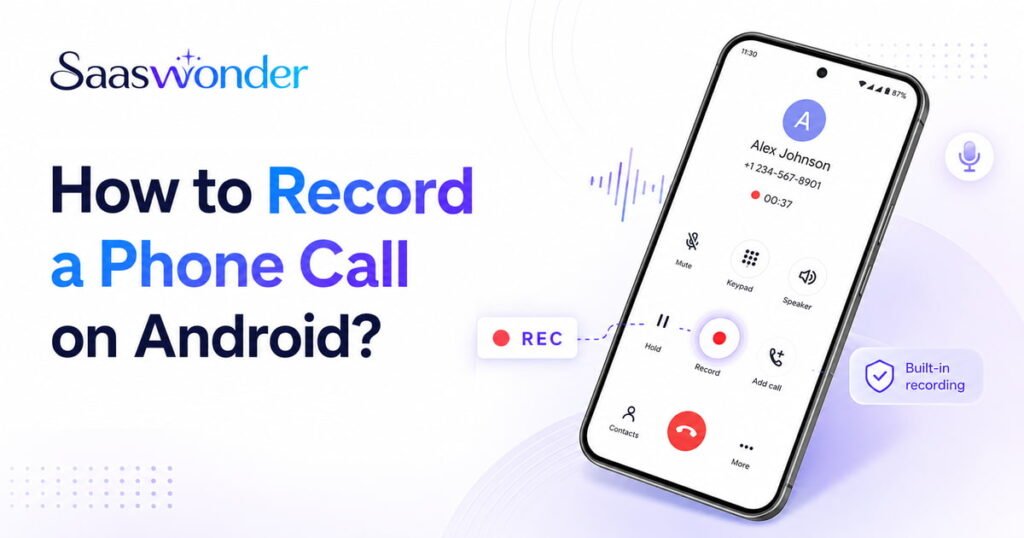
Recording a phone call on Android used to feel like a challenge in the past. As an Android user, you had to rely on unreliable apps and external devices just to capture an important conversation, often resulting in poor-quality recordings.
That changed with Android 9 and especially Android 10 onward, when Google and many manufacturers introduced built-in call recording tools. However, these features aren’t available on every device or in every country due to privacy and legal regulations. This leaves many Android users wondering which methods actually work and how to record calls safely.
In this guide, you’ll learn how to record phone calls using your Android phone’s built-in recording feature and reputable third-party apps. You’ll also get essential tips to ensure your recordings remain clear, secure, and legally compliant.
Key Highlights
- The legality of call recording on Android varies by region, depending on one-party or two-party consent laws, so users must always check local regulations before recording.
- Android phones can record calls using built-in features like automatic or manual call recording, though options may differ across devices and regions.
- If built-in recording isn’t available, users can record calls using third-party apps such as Automatic Call Recorder ACR, ACR Phone, and Cube ACR.
- Third-party apps offer features like cloud backup, privacy controls, call organization tools, and support for VoIP call recording, depending on the app.
- Before recording calls, users should consider factors like legal compliance, Android version limitations, app permissions, audio quality, and available storage space.
Limitations of Recording Phone Calls on Android?
Android’s policy towards call recording has become increasingly strict, particularly with the use of third-party apps. Starting with Android 9, the company added restrictions to record phone calls using third-party apps. The users could use these apps, but they did not function well. For instance, they could record but could not play the entire conversation. The restrictions further intensified with Android 10 as Android even blocked call recording through the use of a microphone. It significantly impacts how call recording apps function on newer Android versions.
For users with Android versions earlier than 9, installing third-party call recording apps might not pose many challenges. However, recording phone calls on the new Android devices can be challenging. You may not find the Android call recording apps on the Google Play Store. You might need to download them from other sources. You must allow permissions for unknown sources in your device settings, which sometimes may pose the risk of malware.
Is It Legal to Record Phone Calls on an Android?
The legality of recording a phone call on an Android depends on where you are, as different countries or states have different rules. Some regions allow one-party consent, meaning only one person (you) on the call needs to agree to the recording. However, some states also have two-party consent, where everyone on the call must know and approve before you record.
Therefore, always check your local laws before recording any conversation. Being aware helps you stay safe from legal issues and builds trust with the people you communicate with. So, before you start recording, make sure you’re doing it the right and lawful way.
How to Record Phone Calls on Android?
To record phone calls on an Android, you can use the built-in call record feature either automatically or manually.
I. Automatic Call Recording
To automatically record calls on Android, open the Phone app > Three dots on the screen > Record Calls > Auto Record Calls > confirm the terms.
- Tap the Phone app.
- Tap the three dots on the top right and select Settings.
- Search “Record Calls” and select it.
- Tap Auto Record Calls and toggle the button to enable it.
- Read the terms and conditions, then tap Confirm.
- Select your preferred option:
- All calls
- Calls with unsaved numbers
- Calls with specific numbers
Note: The above-mentioned steps are based on Samsung devices. So, the settings can vary slightly based on different Android devices.
II. Manual Call Recording
To record calls manually on an Android, tap three dots on the screen during a call and tap on record call.
- Make or answer a call.
- Click on the three dots on the top right section of the call screen.
- Tap Record Call.
Although the call recording is an in-built feature, it might not be available in different regions. So, in such a case, you can use third-party apps to record your calls.
Automatically Record Calls for Selected Numbers
To automatically record calls for certain numbers, follow these simple steps:
Step 1: Open the ‘Phone app’ on your Android.
Step 2: In the top-right corner, tap on ‘More options,’ go to ‘Settings,’ and then select ‘Call Recording.’
Step 3: Under the ‘Always Record,’ choose ‘Selected Numbers.’
Step 4: Enable ‘Always Record Selected Numbers.’
Step 5: Tap on the ‘+’ icon.
Step 6: Select the contacts you want to record calls from.
Step 7: Select ‘Always Record’
Record From a Call
To record a specific call, either when making or receiving it, follow these steps:
Step 1: Make or answer a call.
Step 2: On the call screen, tap the Record button to start recording.
Step 3: To stop recording, press the ‘Stop’ button.
How to Record Calls on Android Using Third-Party Apps?
Automatic Call Recorder ACR, ACR Phone, and Call Recorder – Cube ACR are the top third-party call recording apps for an Android phone.
1. Automatic Call Recorder ACR
Automatic Call Recorder ACR allows you to record both incoming and outgoing calls in clear, high-quality audio. It includes a built-in player for quick playback and supports note-taking for better organization. It also offers fingerprint protection, keeping recordings private and secure. Moreover, it provides cloud backup to Google Drive and a volume booster for clearer playback, though results may vary on newer Android devices.
2. ACR Phone
ACR Phone works as a full phone dialer and call manager with built-in call recording support on compatible devices. It focuses on privacy by keeping all data, including contacts and call logs, stored locally. It also includes offline spam blocking, call announcements, and note-taking options for better call organization. Additionally, users can back up data, use dual SIM support, and even upload recordings to cloud storage or private servers for easy access.
3. Call Recorder – Cube ACR
Cube ACR is a third-party Android call recording app that captures both regular phone calls and calls from internet-based apps like WhatsApp, Telegram, and Viber. It offers automatic and manual recording modes, allowing you to control which calls get saved. Moreover, its premium version adds PIN protection, SD card storage, and tools like “shake-to-mark” to highlight key moments during a call.
Record a Phone Call on VoIP Plattform
VoIP platform can be an excellent alternative to record calls on Android for those looking for a more versatile call recorder. Besides call recording, VoIP service providers like Calilio allow you to pause and resume recording during a call, adding a layer of control and flexibility. You can use this functionality for both automatic and manual recording of calls. Once a call is recorded, it’s directly stored in the call box. You can access or retrieve it anytime for review or recording.
Here’s how to record a phone call on Calilio:
- Step 1: Open your Calilio account through its app.
- Step 2: Intiate Calls
- Step 3: Find the call recording option. Press while you start
- Step 4: Once this feature is activated, you can record incoming calls.
Is It Legal to Record Phone Calls on Android?
Laws about recording phone calls on Android, iOS, or any other platform may vary between countries. Laws surrounding call recording in the United States vary by state. Federal law generally requires one-party consent. It means that if you’re part of the conversation, you can legally record it. However, some states have two-party consent laws, where both parties in the conversation must agree to the recording.
Before you start recording calls, it’s important to check the laws in your area. Ignoring these laws can lead to serious punishments and fines. A good rule of thumb is always to inform the other person that you’re recording the call.
Things to Consider Before Recording Calls on an Android
Before recording a call on Android, make sure it’s legal in your area and that your device version supports it. Also, review app permissions, test audio clarity, and ensure there’s enough storage space.
- Privacy Laws: As mentioned above, some places require both parties’ consent before recording. Therefore, always check the legality of call recording in your region.
- Android Version: Some Android versions, like Android 9 and 10, limit call recording features and apps. So, check if your device’s version supports this feature or not.
- App Permissions: Review permissions carefully before granting access to your mic, storage, and calls.
- Audio Quality: Test your setup before recording important calls, as a poor mic or background noise can affect clarity.
- Storage Space: Recorded calls take up memory. Therefore, make sure your device has enough space to store them safely.
Conclusion
There are several ways to record phone calls on an Android, from built-in options to third-party apps. However, these methods often come with downsides like inconsistent audio quality, limited compatibility across Android versions, and privacy concerns with external apps.
A better alternative is using a VoIP solution like Calilio. With Calilio, you can subscribe to our affordable plan and enjoy advanced call recording features, which can be customized through its settings. In particular, you get auto/on-demand recording, secure storage, call transcription and AI insights, and download, all within a unified business phone system.
Frequently Asked Questions
Can you record an incoming call on an Android phone?
You can record an incoming call on an Android phone. You can use the built-in call recording feature, if available, or use third-party call recording apps to record incoming phone calls on Android phones.
Is there an app to record phone calls on Android?
Yes, there are many apps available to record phone calls on Android. Popular options include ACR Phone, Cube Call Recorder ACR, and Automatic Call Recorder ACR, among others.
How do I record a phone call on my Samsung?
You can record a phone call on Samsung by tapping the record button that appears on the screen during a call. It is part of Samsung’s native dialer app. If it’s not available, you might need to use a third-party call recording app.
Why won’t my Android phone record calls?
Your Android phone might not record calls due to restrictions in the phone’s software or the Android version. Starting with Android 9, Google has imposed limitations on call recording. If your phone’s native app doesn’t support recording, you might need to use a third-party app.